When a Word document has an open password, you must enter the correct password before you can view the file. If the password is forgotten, MyPassRecovery Desktop can help with Word password recovery. This guide shows how to import the protected Word document, let the software analyze password recovery difficulty, submit the password recovery task, and use the recovered password to open the Word file.
What Is Word Password Recovery?
Word password recovery means finding the open password required to unlock a Word document. An open password is different from editing restriction. Editing restriction may allow you to view the document but limit changes, while an open password blocks the file before it opens. MyPassRecovery Desktop provides password recovery for Word documents that cannot be opened without a password.
When the software detects an open password on a Word file, it starts the password recovery workflow. The password recovery process may analyze the encryption type, estimate recovery difficulty, and return a possible password result after processing.
When to Use This Guide
Use this guide when you need Word password recovery for a document that asks for a password before opening.
- The Word document asks for a password before it opens.
- The original Word open password has been forgotten.
- The file content needs to be viewed, but the password is no longer available.
- You want to use MyPassRecovery Desktop for password recovery and open the document with the recovered password.
When This Guide Does Not Apply
If the Word document opens normally but cannot be edited, it is usually an editing restriction case rather than password recovery. If the file is damaged, has the wrong extension, is locked by Windows permissions, or is occupied by cloud sync, password recovery may not solve the problem.
Before You Start
Before starting password recovery, prepare the software account and the Word document. Keep the file on a local drive and make sure it is not open in Word or another program.
- Install and sign in to MyPassRecovery Desktop.
- Prepare a Word document with an open password. Supported formats include .doc and .docx.
- Keep the network connection stable because password recovery communicates with the service.
- Close the Word window that is using the document before importing it.
Operation Steps
Step 1: Open MyPassRecovery Desktop
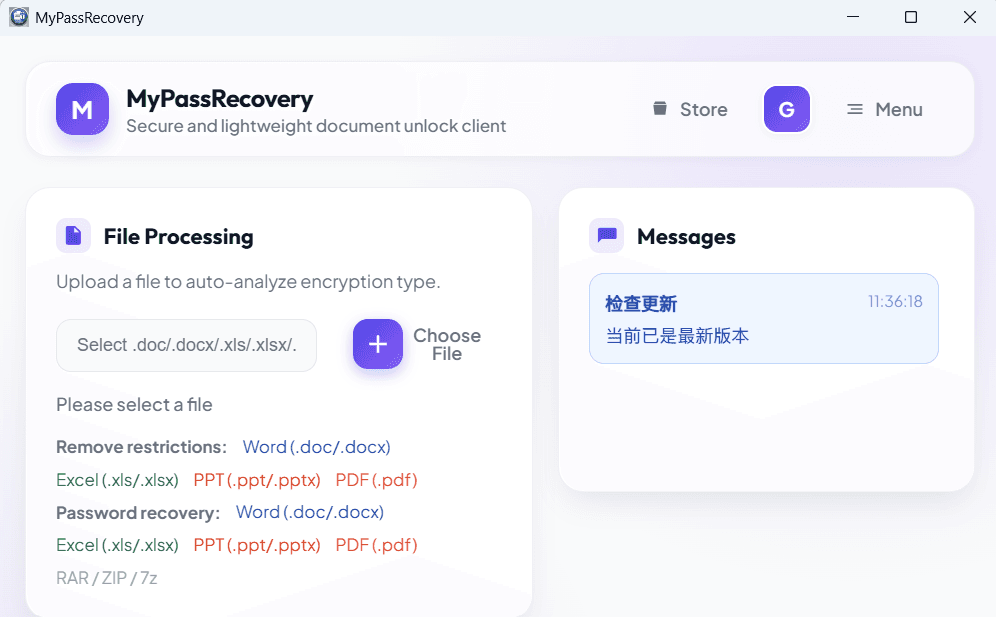
Open MyPassRecovery Desktop and confirm that your account is signed in. Password recovery requires the client to connect to the service and read the Word file, so check the message center for login errors, network issues, or service pause messages before starting.
Step 2: Import the Word Document for Password Recovery
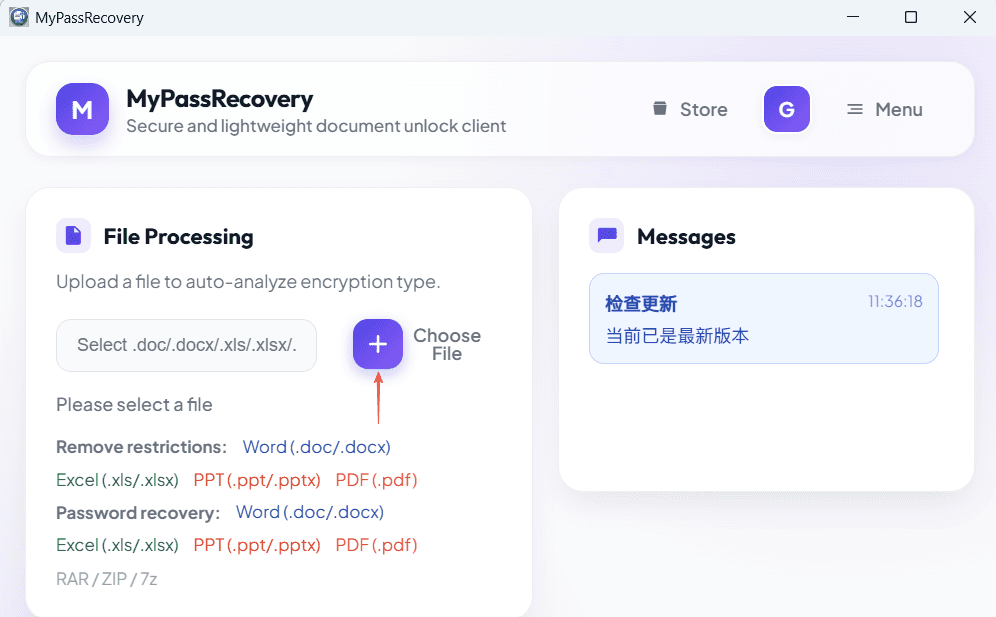
In the Document Processing area, click the file selection button and choose the Word document that needs password recovery. After import, the software reads the file path and checks whether the file has an open password.
Step 3: Wait for Password Type and Difficulty Analysis
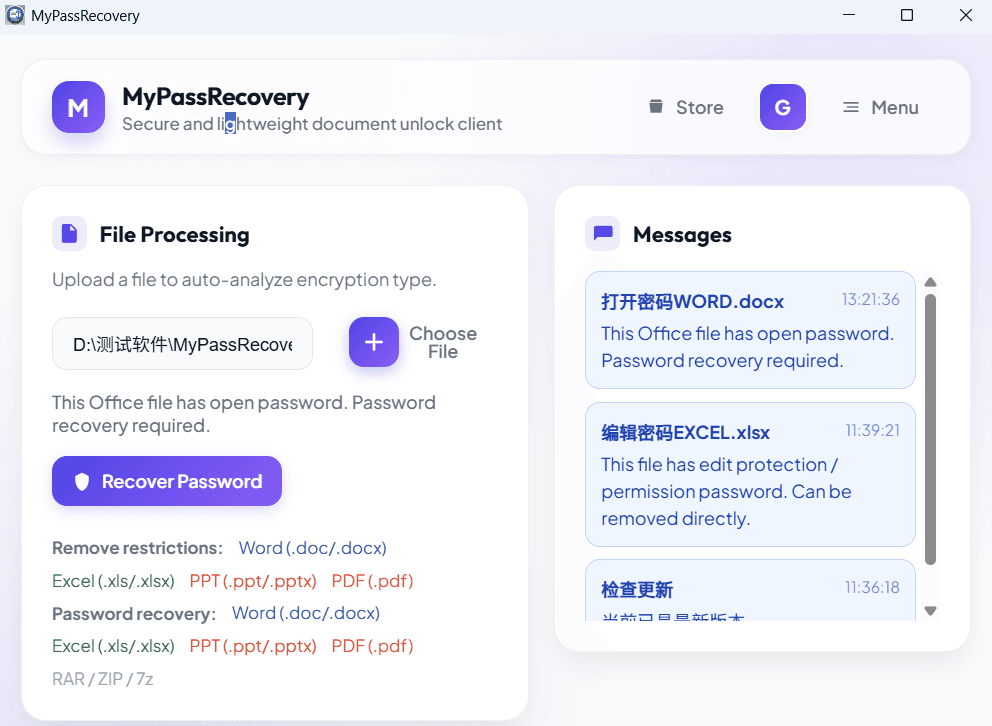
After the file is imported, MyPassRecovery Desktop analyzes the password type and password recovery difficulty. If the file is protected by an open password, the software should enter the password recovery workflow and show the related task status.
Step 4: Submit the Password Recovery Task
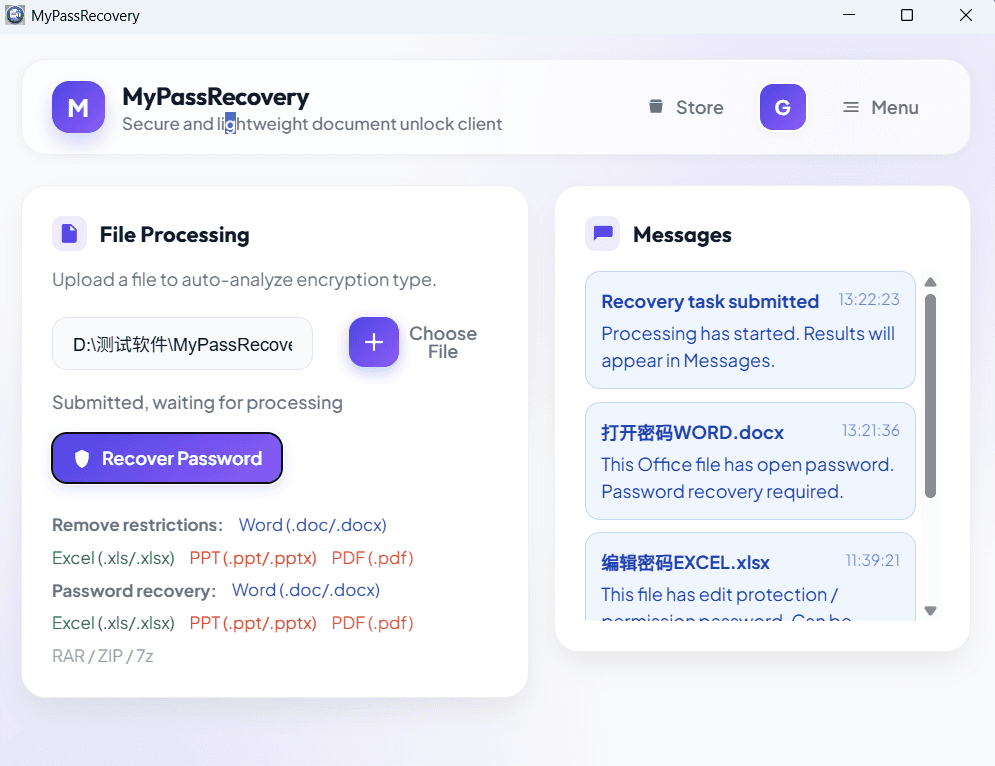
After the software confirms the Word open password case, follow the interface prompt to submit the password recovery task. Password recovery may take time depending on password complexity, file encryption, and service status. Keep the client online while waiting.
Step 5: View the Password Recovery Result
When password recovery is complete, check the result area in the software. Copy or record the recovered password, reopen the original Word document, and enter the recovered password in the password box. If the document opens, the password recovery workflow is complete.
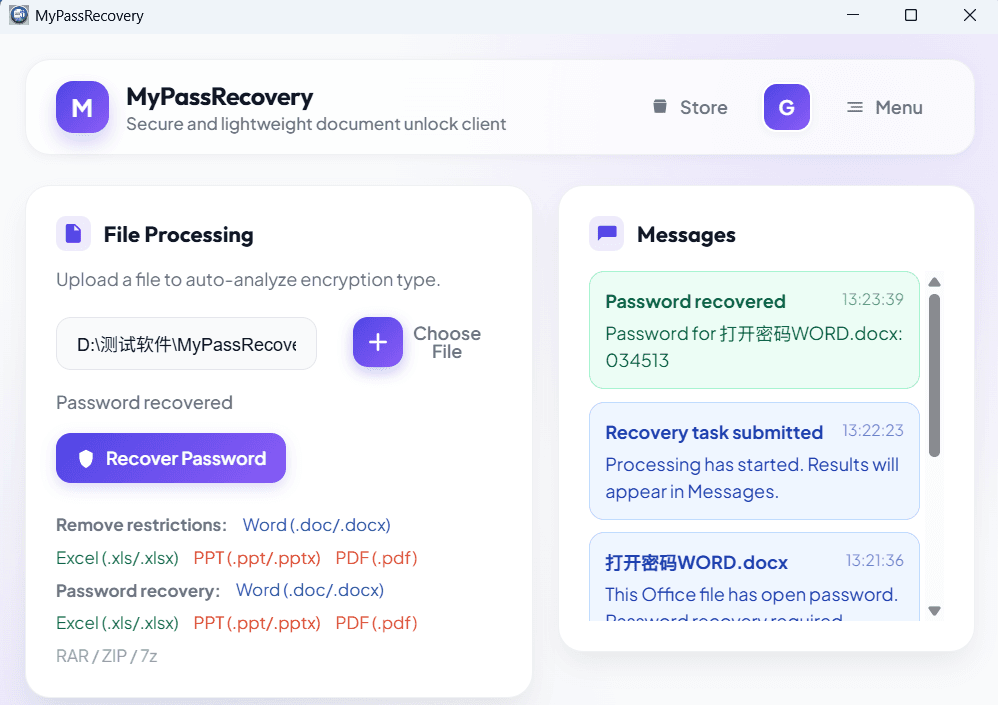
Result
After password recovery is complete, MyPassRecovery Desktop usually displays the password that can open the Word document. Use that password to open the original file. Password recovery does not automatically modify the Word document or remove protection; it helps you recover the password required to open the document.
Usage Tips
- Only use password recovery on Word documents you are authorized to process.
- Keep the network stable and do not close MyPassRecovery Desktop during password recovery.
- After receiving the recovered password, open the Word file immediately to confirm that the password works.
- If you do not want to enter the password again later, open the file in Word and save a new copy with your preferred protection settings.