This guide explains how to use MyPassRecovery Desktop for RAR password recovery when a .rar archive cannot be opened because the RAR password has been forgotten. The customer workflow is clear: import the RAR file, wait for archive analysis, submit the password recovery task, and use the recovered password in WinRAR or another compatible tool.
What Is RAR Password Recovery?
RAR password recovery means recovering the password required to open or extract a protected RAR archive. A RAR file is commonly created with WinRAR and may be in a RAR or RAR5 format. Some RAR archives also use encrypted file names, so the internal file list may stay hidden until password recovery succeeds.
When This Guide Applies
- You have a .rar archive that asks for a password before extraction.
- The archive was created by WinRAR or another RAR-compatible compression tool.
- The RAR archive may use RAR or RAR5 protection, including encrypted file names.
- You own the RAR archive or have permission to run password recovery.
When This Guide Does Not Apply
- The RAR archive is damaged and cannot be recognized as a valid archive.
- The file is actually ZIP, 7Z, or another archive type but only renamed as .rar.
- You do not have permission to perform password recovery on the RAR archive.
Before You Start
- Install and sign in to MyPassRecovery Desktop.
- Keep the locked RAR file in an easy-to-find folder.
- Make sure the computer can access the MyPassRecovery service during password recovery.
- Prepare WinRAR, 7-Zip, or another RAR-compatible extractor for the final extraction step.
Operation Steps
Step 1: Open MyPassRecovery Desktop
Start MyPassRecovery Desktop and confirm that your account is signed in. The RAR password recovery process starts from the main document processing area.
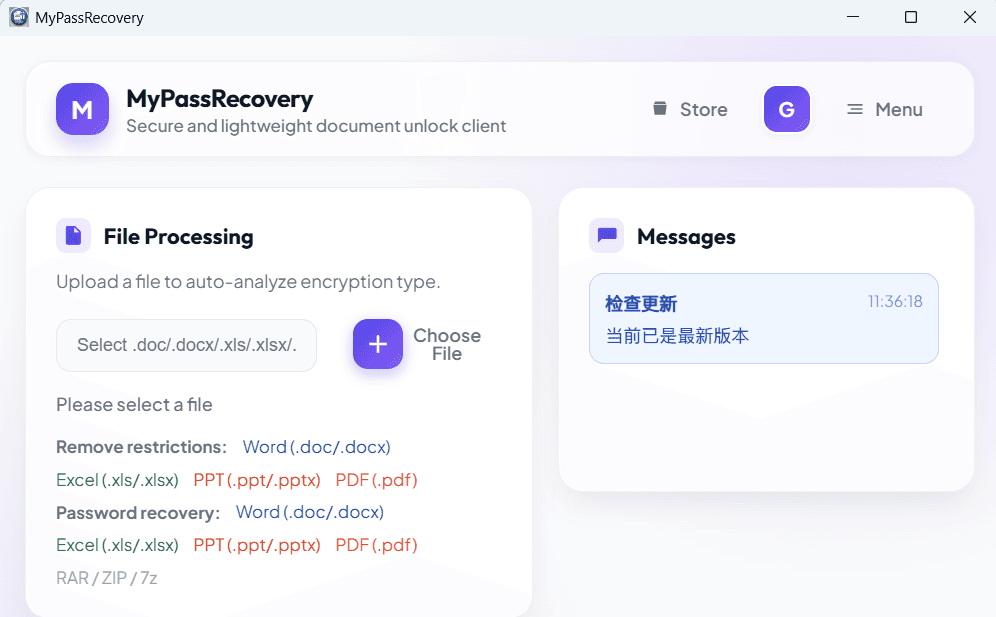
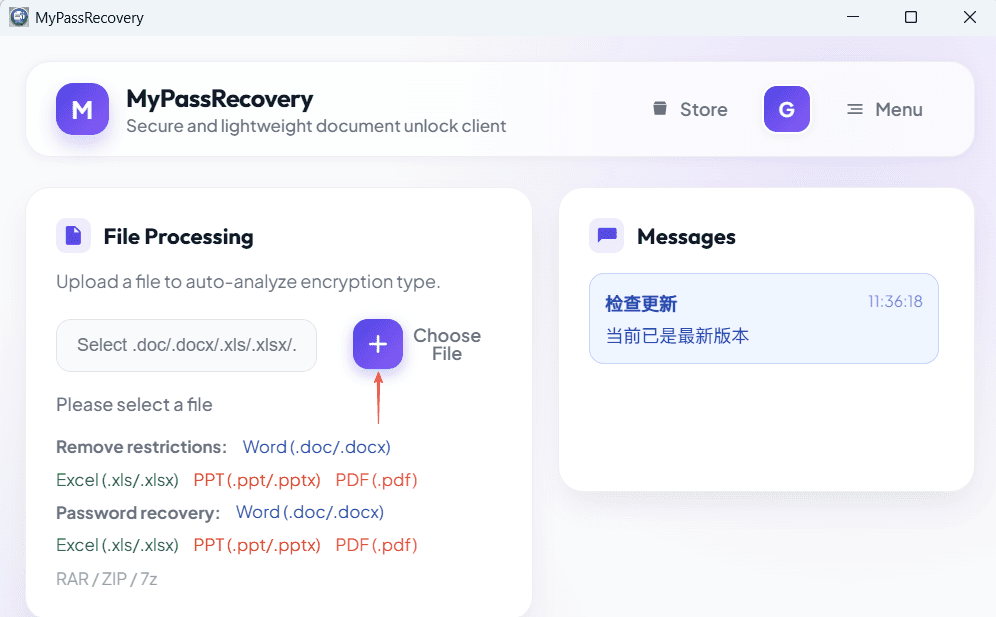
Click the file selection button and choose the .rar archive that needs password recovery. After import, the software should display the selected RAR file path and prepare archive analysis.
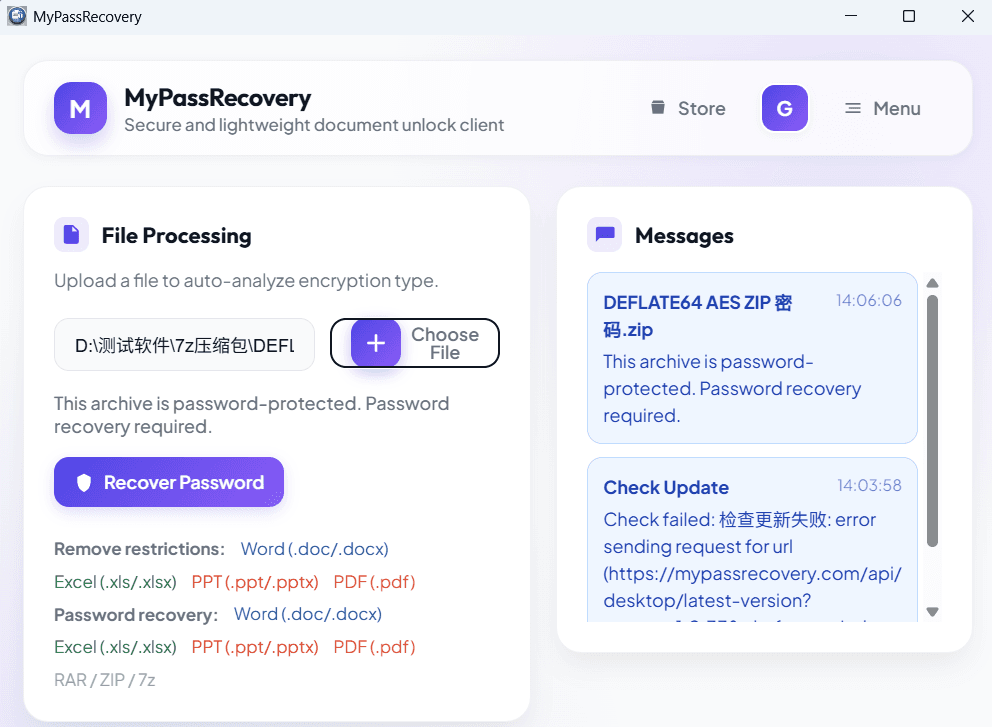
MyPassRecovery Desktop reads the archive type and analyzes the password recovery difficulty. For a RAR archive, the software should treat the task as password recovery and identify the archive as RAR-related protection.
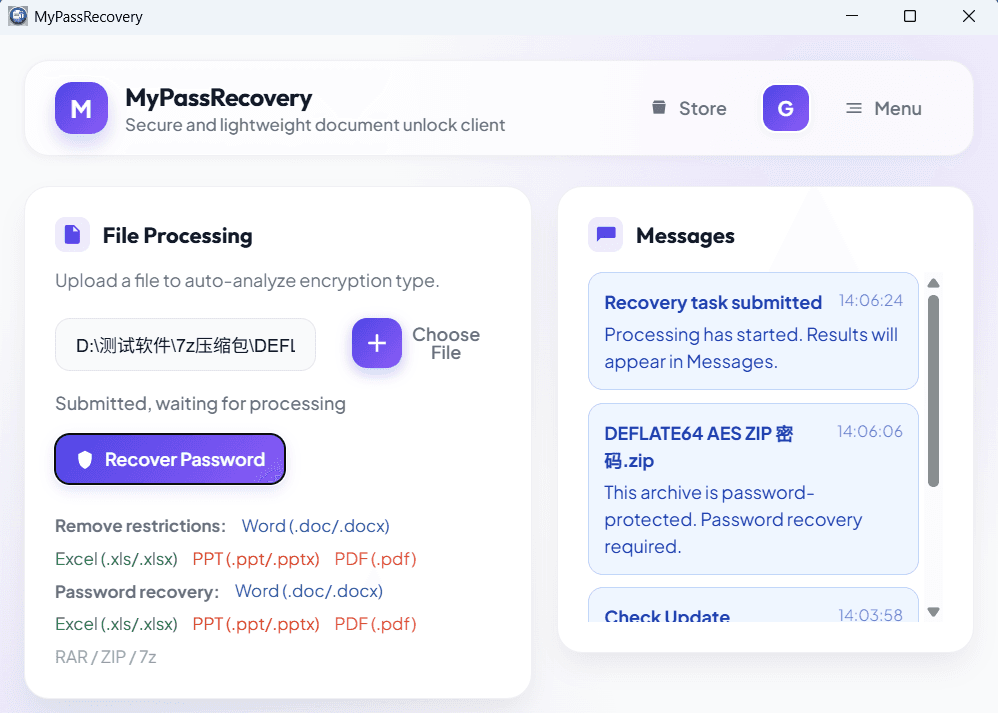
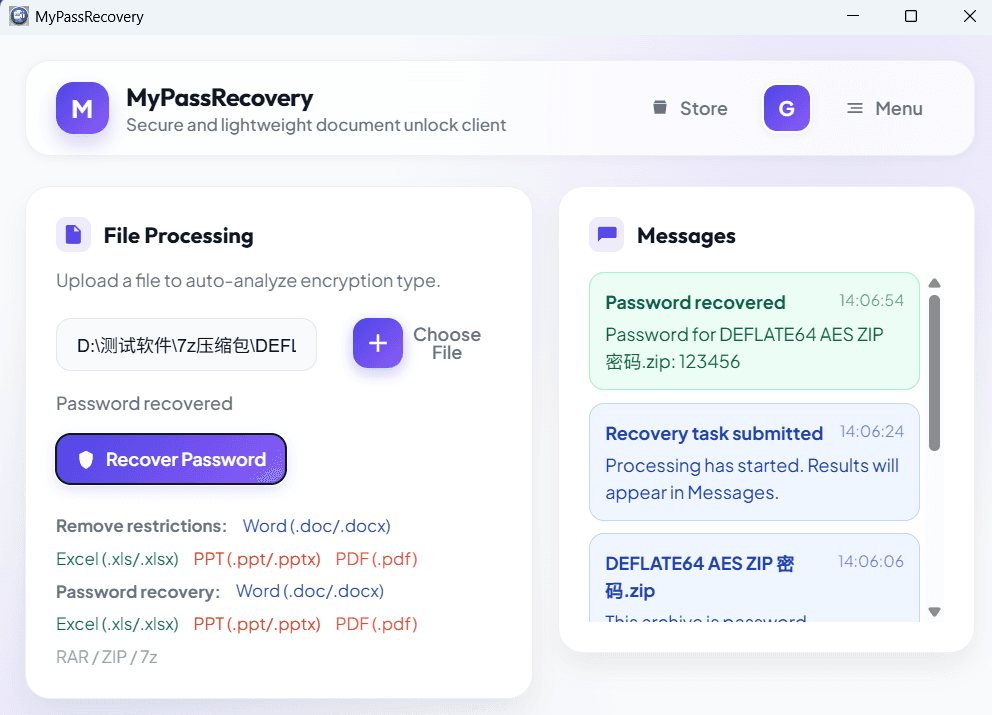
After the RAR file is recognized, submit the password recovery task. Keep the client open and wait for the task status to update while the service processes the encrypted archive.
When password recovery is complete, copy or note the recovered password. Open the RAR archive with WinRAR, 7-Zip, or another compatible tool, then enter the recovered password to extract the files.
Result Description
A successful RAR password recovery result should show the recovered password clearly. After password recovery, the customer should be able to open the RAR archive and extract the contents with the recovered password. If the archive uses encrypted file names, the recovered password should also reveal the file list in WinRAR or another compatible RAR tool.
Practical Suggestions
- Use the original RAR archive, not a damaged or incomplete copy.
- Do not rename ZIP or 7Z files to .rar for password recovery.
- If the archive was made by WinRAR, keep the original file name and extension to help recognition.
Password Recovery Notes
For this RAR workflow, password recovery means recovering the archive opening password. MyPassRecovery Desktop does not change the archive contents during password recovery; it helps the customer obtain the password needed to access the protected RAR archive.