Install and Open MyPassRecovery on macOS
MyPassRecovery for macOS is currently distributed without Apple notarization. macOS Gatekeeper may therefore block the downloaded app or display an alert such as “MyPassRecovery” is damaged and can't be opened. You should move it to the Trash. On a Chinese-language Mac, the same warning may appear as “MyPassRecovery” 已损坏,无法打开。您应该将它移到废纸篓。 A similar alert can also mean that an app is genuinely incomplete, corrupted, or modified, so do not bypass the warning automatically.
Safety Check Before You Continue
- Download MyPassRecovery only from the official MyPassRecovery website or a download link supplied directly by MyPassRecovery support.
- Delete unexpected copies received through email, chat, forums, file-sharing sites, or search advertisements.
- If MyPassRecovery publishes an SHA-256 checksum, compare it with the downloaded installer before opening it:
shasum -a 256 ~/Downloads/MyPassRecovery.dmg
- If the warning says the app will damage your computer, macOS reports known malware, or the file has an unexpected name or size, stop and contact MyPassRecovery support. Do not run the commands below.
Apple explains that macOS checks Developer ID signatures and notarization, and warns that overriding these protections can expose a Mac to malware. See Apple's guidance on safely opening Mac apps and Apple's explanation of modified or damaged apps.
Recommended Method: Open Anyway in System Settings
After confirming that the app came from the official source:
- Drag
MyPassRecovery.appinto the Applications folder. - Try to open it once, then close the warning.
- Choose Apple menu > System Settings > Privacy & Security.
- Scroll to Security, find the message about MyPassRecovery, and click Open Anyway.
- Enter the administrator password or use Touch ID, then confirm Open.
Apple notes that the Open Anyway option is normally available for about one hour after an attempted launch. This creates an exception only for that app. See Open a Mac app from an unknown developer.
If macOS Still Says the App Is Damaged
Use this fallback only after MyPassRecovery support confirms that the download is authentic and intact. Open Terminal and first check whether the app has a quarantine attribute:
xattr -p com.apple.quarantine "/Applications/MyPassRecovery.app"
If the attribute is present, remove only that attribute from this specific app bundle:
xattr -dr com.apple.quarantine "/Applications/MyPassRecovery.app"
If the downloaded app bundle has a different name, replace the quoted path with its actual .app path. To avoid typing mistakes, type xattr -dr com.apple.quarantine (including the final space), drag the app from Finder into the Terminal window, and then press Return.
Then Control-click MyPassRecovery.app in Finder, choose Open, and confirm the prompt. The xattr -d option removes a named extended attribute and -r applies the operation within the app bundle; see the macOS xattr manual.
Do not use sudo spctl --master-disable, do not disable Gatekeeper globally, and do not clear quarantine attributes from the whole Downloads or Applications folder. If the targeted command does not solve the problem, delete the app, download a fresh copy from the official source, and contact MyPassRecovery support.
macOS Interface and Screenshot Note
The screenshots below are reused from the Windows guide because the MyPassRecovery document-processing workflow is the same: sign in, select the protected file, wait for analysis, submit or save the result, and verify the output. Window controls, file-picker appearance, fonts, and paths may look different on macOS. Follow the labels in your installed macOS build when a screen differs.
A customer guide for RAR password recovery
Page Summary
This guide explains how to use MyPassRecovery Desktop for RAR password recovery when a .rar archive cannot be opened because the RAR password has been forgotten. The customer workflow is clear: import the RAR file, wait for archive analysis, submit the password recovery task, and use the recovered password in WinRAR or another compatible tool.
What Is RAR Password Recovery?
RAR password recovery means recovering the password required to open or extract a protected RAR archive. A RAR file is commonly created with WinRAR and may be in a RAR or RAR5 format. Some RAR archives also use encrypted file names, so the internal file list may stay hidden until password recovery succeeds.
When This Guide Applies
- You have a .rar archive that asks for a password before extraction.
- The archive was created by WinRAR or another RAR-compatible compression tool.
- The RAR archive may use RAR or RAR5 protection, including encrypted file names.
- You own the RAR archive or have permission to run password recovery.
When This Guide Does Not Apply
- The RAR archive is damaged and cannot be recognized as a valid archive.
- The file is actually ZIP, 7Z, or another archive type but only renamed as .rar.
- You do not have permission to perform password recovery on the RAR archive.
Before You Start
- Install MyPassRecovery Desktop. The free quick check does not require sign-in; sign in only when submitting a subscribed cloud-recovery task.
- Keep the locked RAR file in an easy-to-find folder.
- Make sure your Mac can access the MyPassRecovery service during password recovery.
- Prepare WinRAR, 7-Zip, or another RAR-compatible extractor for the final extraction step.
Operation Steps
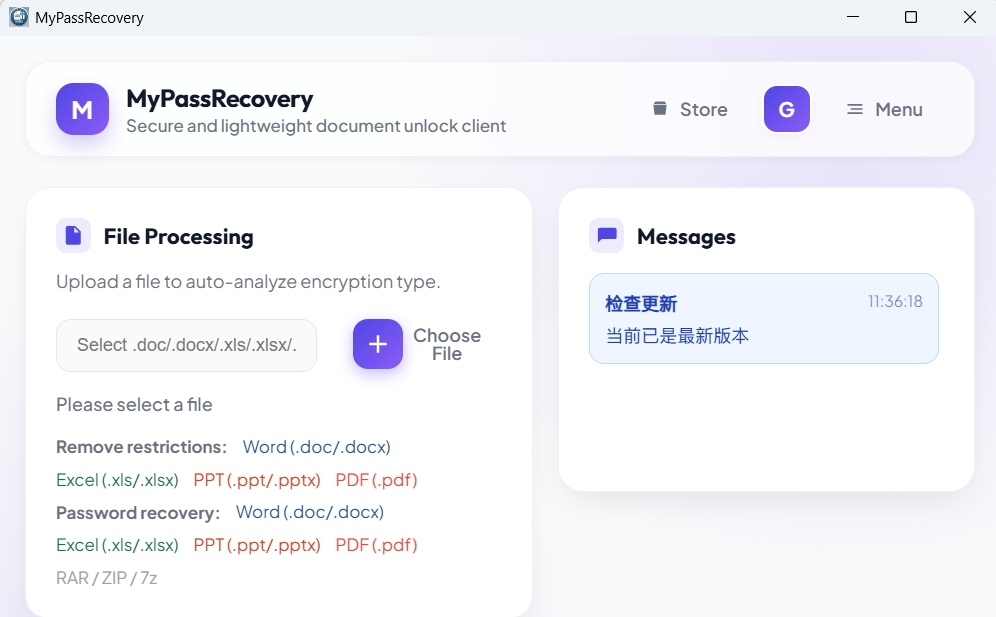
Step 1: Open MyPassRecovery Desktop
Start MyPassRecovery Desktop and confirm that the app is online; sign in only if you are submitting a subscribed cloud-recovery task. The RAR password recovery process starts from the main document processing area.
Step 2: Import the protected RAR file
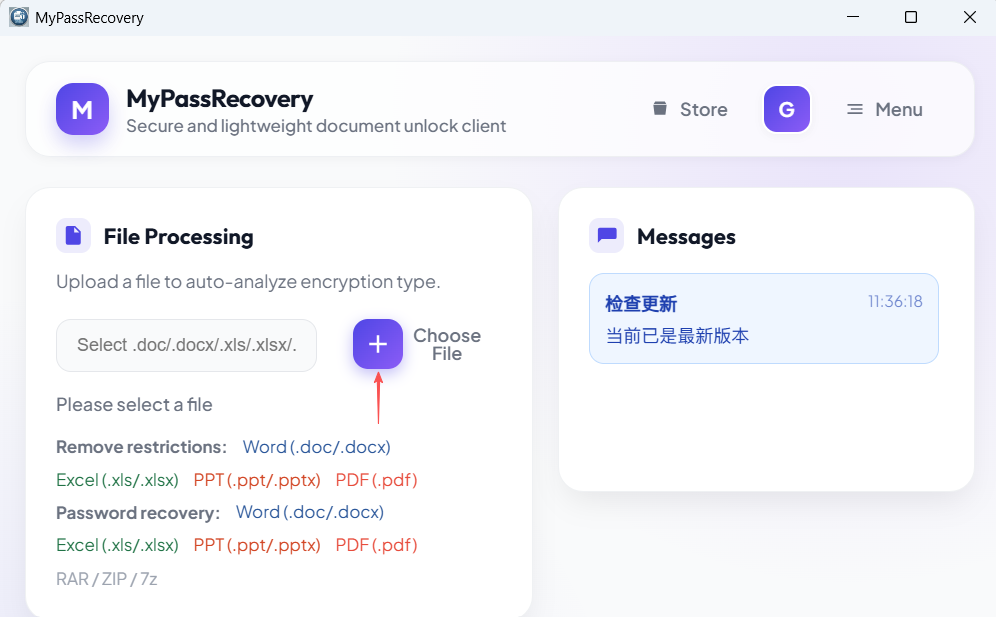
Click the file selection button and choose the .rar archive that needs password recovery. After import, the software should display the selected RAR file path and prepare archive analysis.
Step 3: Wait for RAR password recovery analysis
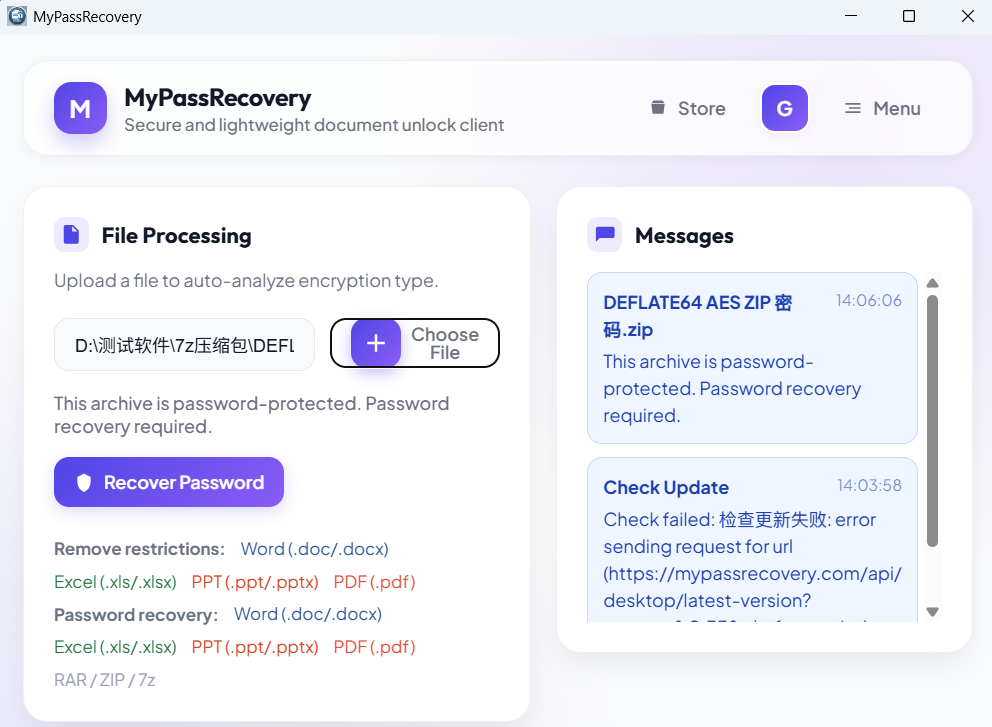
MyPassRecovery Desktop reads the archive type and analyzes the password recovery difficulty. For a RAR archive, the software should treat the task as password recovery and identify the archive as RAR-related protection.
Step 4: Submit the password recovery task
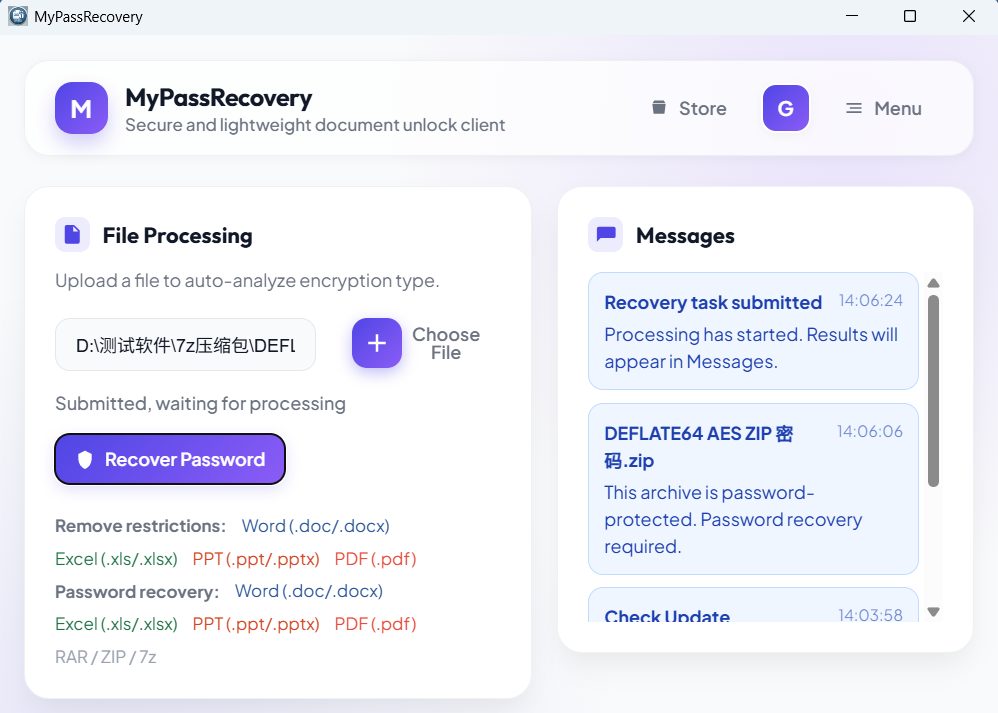
After the RAR file is recognized, submit the password recovery task. Keep the client open and wait for the task status to update while the service processes the encrypted archive.
Step 5: View the recovered password and extract the RAR archive
When password recovery is complete, copy or note the recovered password. Open the RAR archive with WinRAR, 7-Zip, or another compatible tool, then enter the recovered password to extract the files.
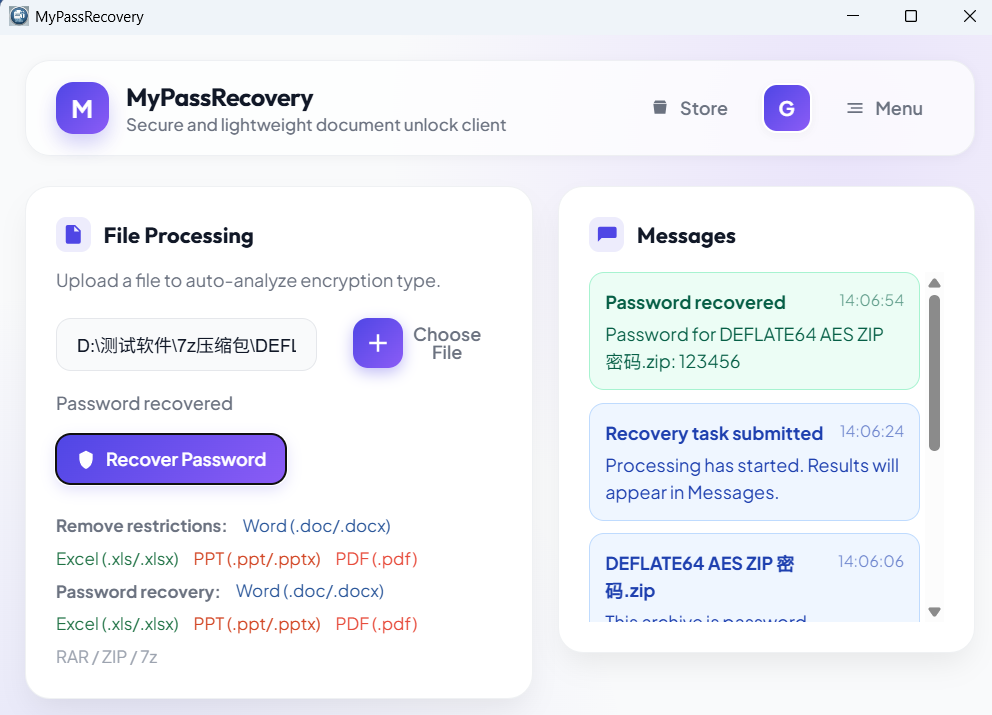
Result Description
A successful RAR password recovery result should show the recovered password clearly. After password recovery, the customer should be able to open the RAR archive and extract the contents with the recovered password. If the archive uses encrypted file names, the recovered password should also reveal the file list in WinRAR or another compatible RAR tool.
Practical Suggestions
- Use the original RAR archive, not a damaged or incomplete copy.
- Do not rename ZIP or 7Z files to .rar for password recovery.
- If the archive was made by WinRAR, keep the original file name and extension to help recognition.
Password Recovery Notes
For this RAR workflow, password recovery means recovering the archive opening password. MyPassRecovery Desktop does not change the archive contents during password recovery; it helps the customer obtain the password needed to access the protected RAR archive.